
How to Get Your
IRS Account Transcript
A step by step guide to downloading the transcripts you need for your COVID era penalty refund claim. The process takes about 10 minutes if you already have an ID.me account, or 20 to 30 minutes if you need to create one.
To evaluate your COVID era IRS penalty refund claim, we need your Account Transcript for each of these tax years:
- Tax Year 2019
- Tax Year 2020
- Tax Year 2021
- Tax Year 2022
The Account Transcript is the document that shows penalty assessments using IRS transaction codes (TC 160, 166, 270, 276, and similar). This is the only transcript type that contains the information we need.
The fastest way to get these is online through your IRS Individual Online Account. The instructions below walk you through it. If you cannot use the online method, alternatives are listed at the bottom of this page.
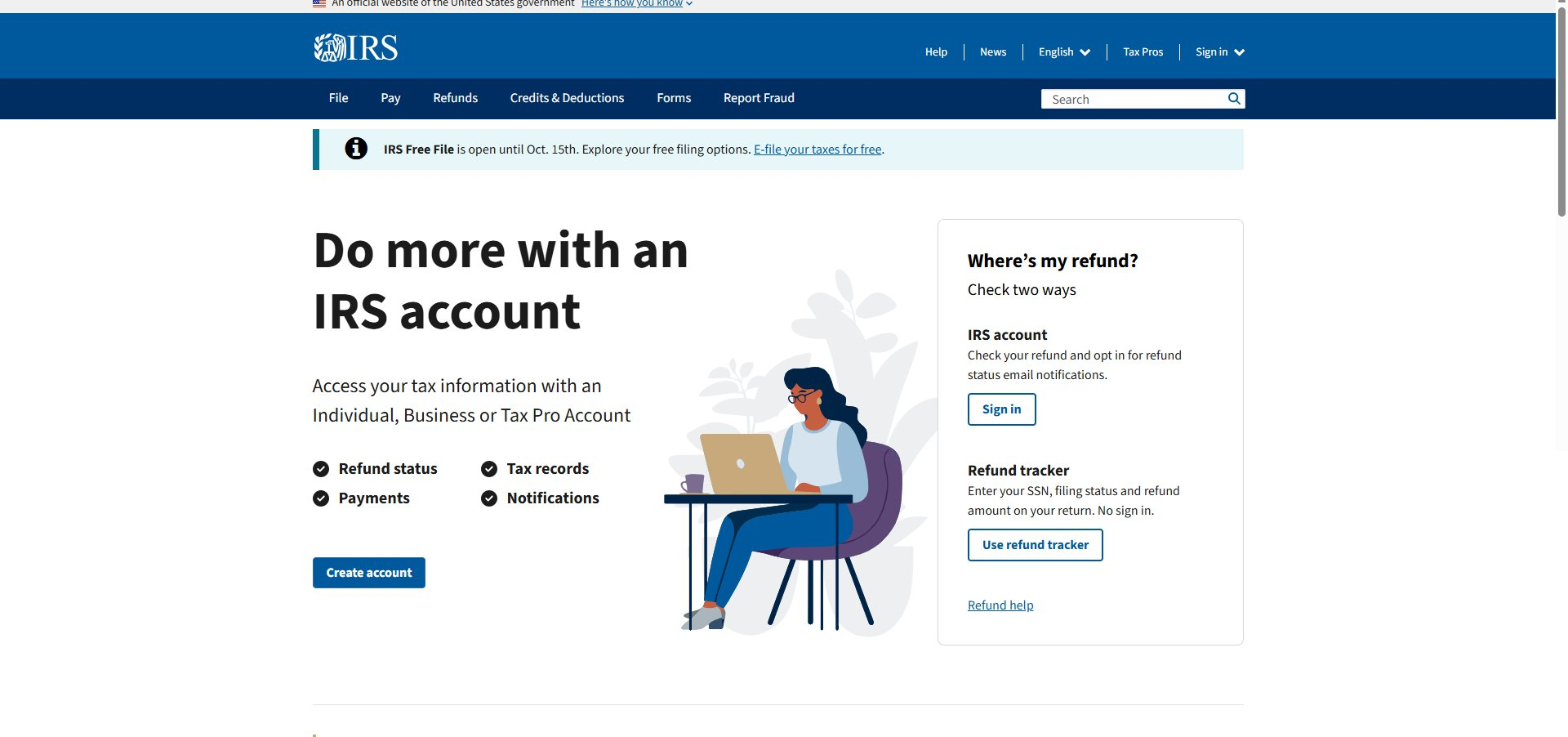
Open your browser and go to irs.gov. On the homepage, look for the Sign in link in the top right area, or click the blue Sign in button in the “Where’s my refund?” panel.
The IRS uses ID.me to verify your identity. If you already have an ID.me account from another government service (like the VA or your state DMV), you can use that same account. If not, you will need to create a new one.
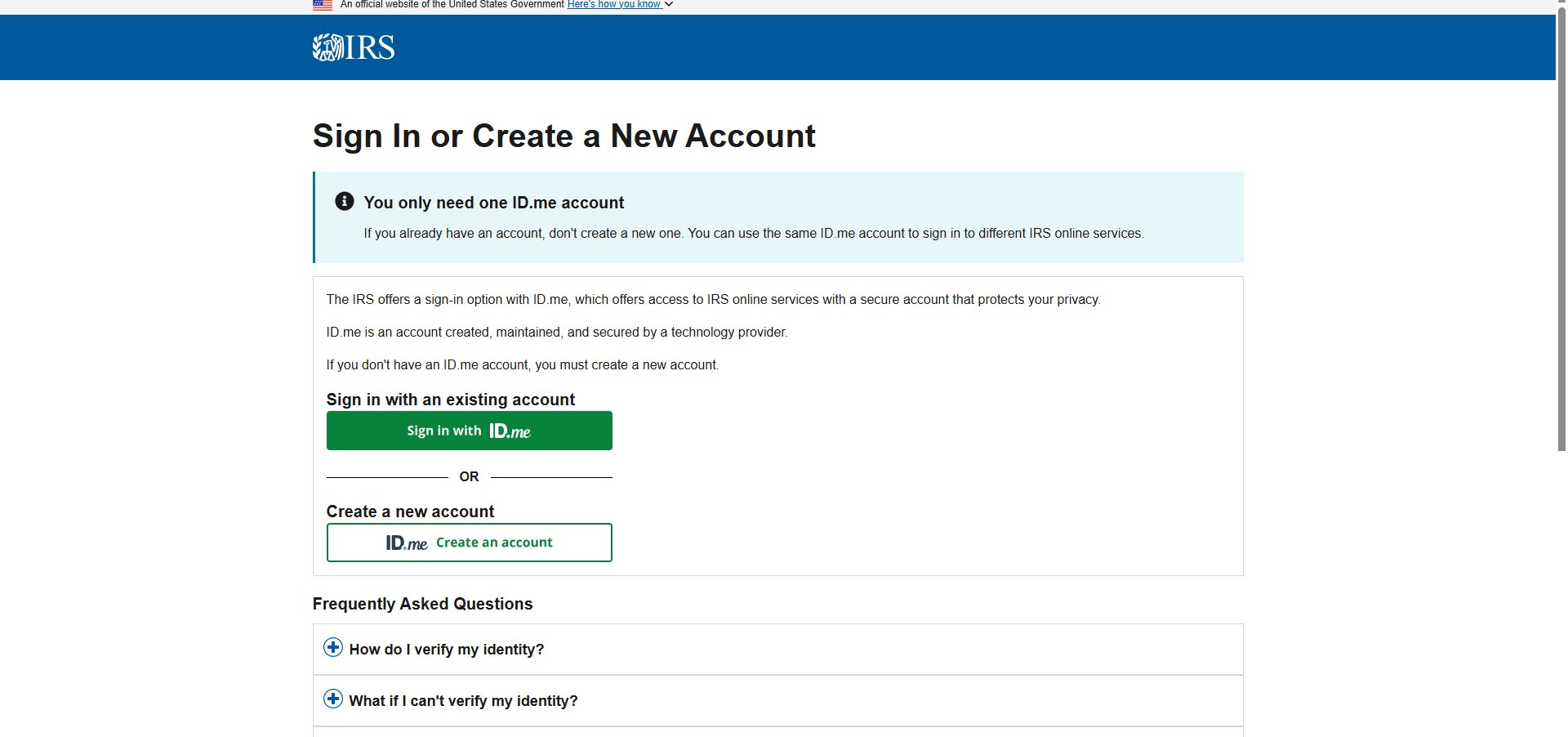
To create an ID.me account, you will need:
- A valid email address
- A photo ID (driver’s license, state ID, or passport)
- A smartphone or webcam to take a selfie for ID verification
- Your Social Security number
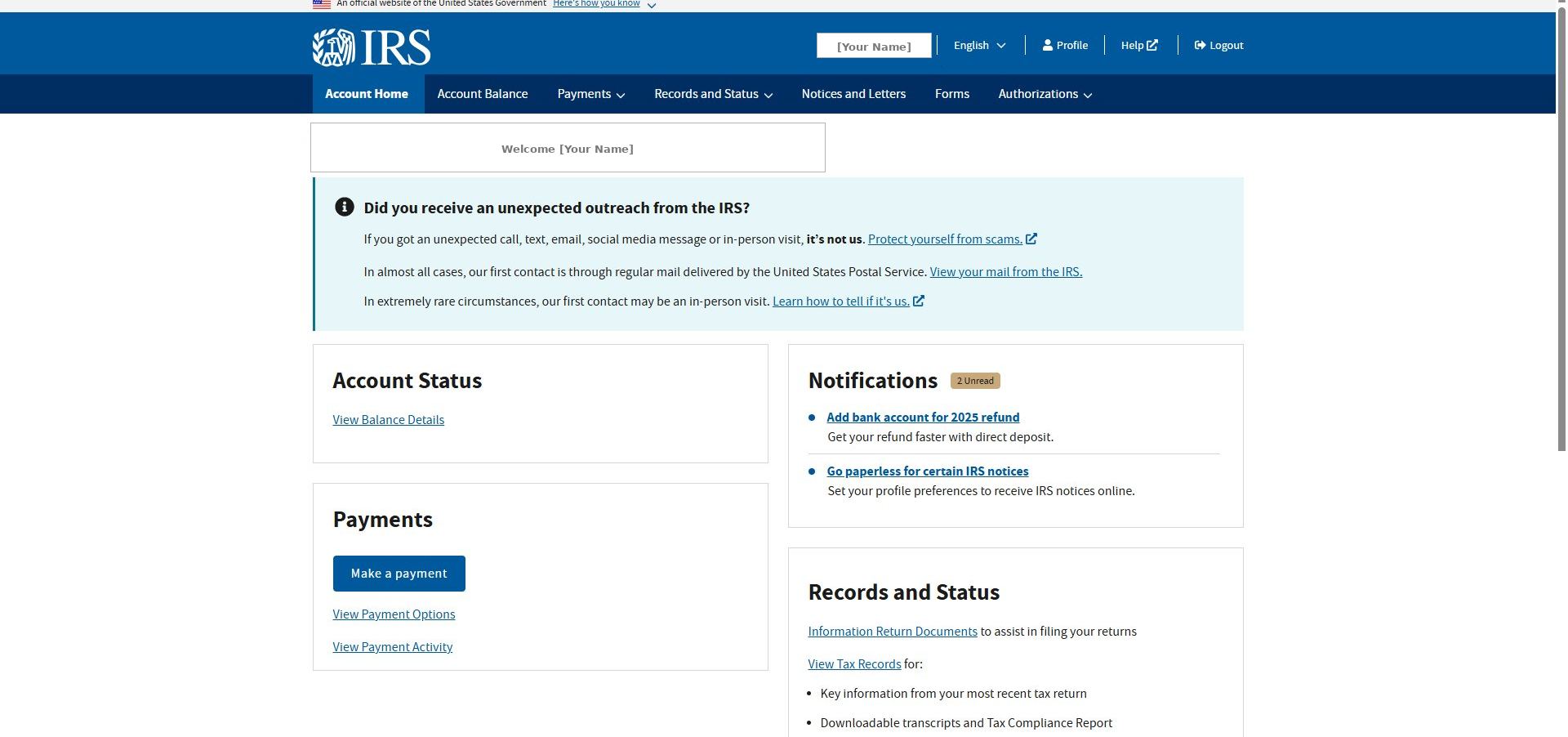
After you sign in, you will land on the IRS Account Home page. Your name appears in the top right of the IRS header bar, and a “Welcome” greeting appears at the top of the page.
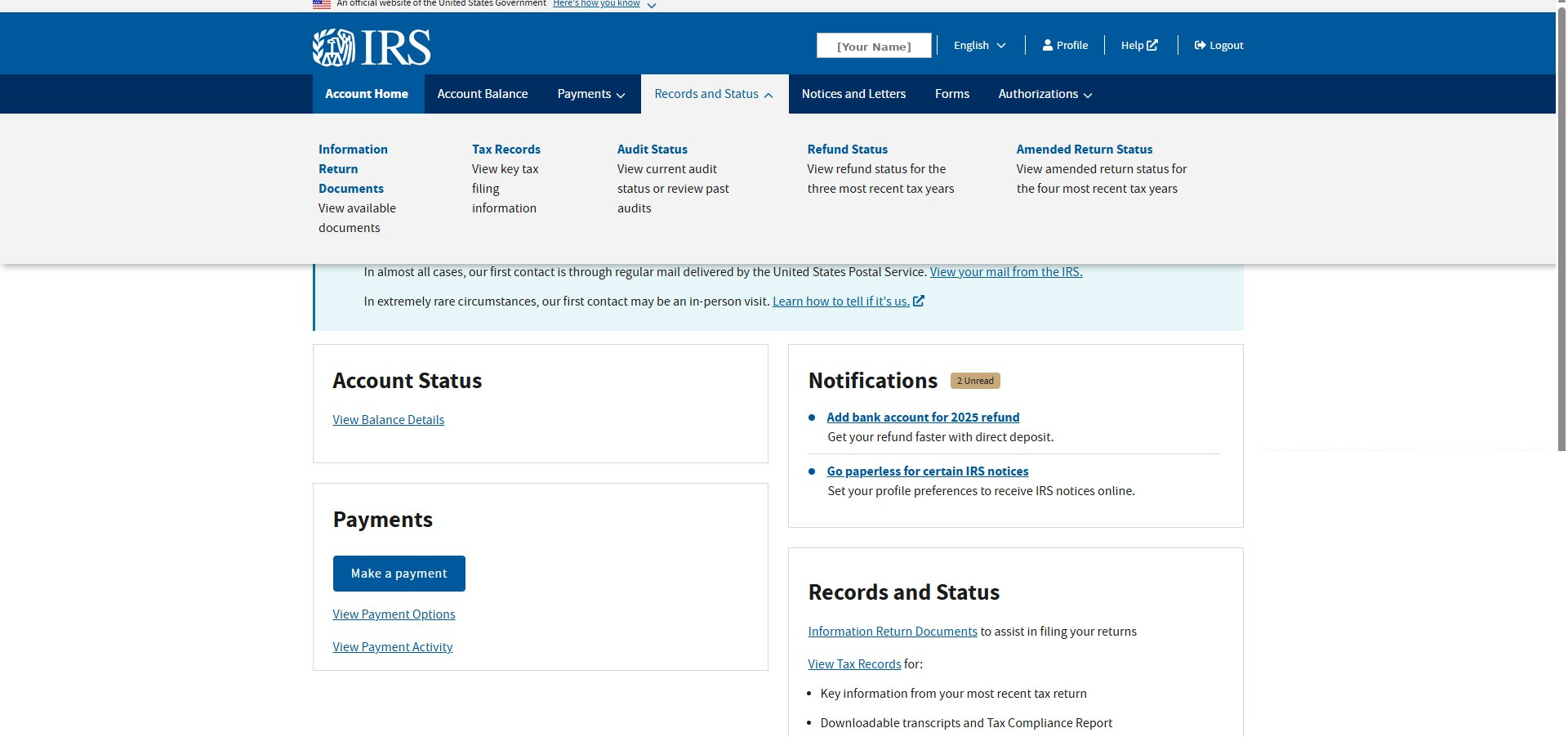
In the dark blue navigation bar across the top of the page, hover over or click Records and Status. A dropdown will appear. From the dropdown, click Tax Records.
The Tax Records page shows several panels. Look for the Transcripts panel on the right side. Click the blue View transcripts button inside that panel.
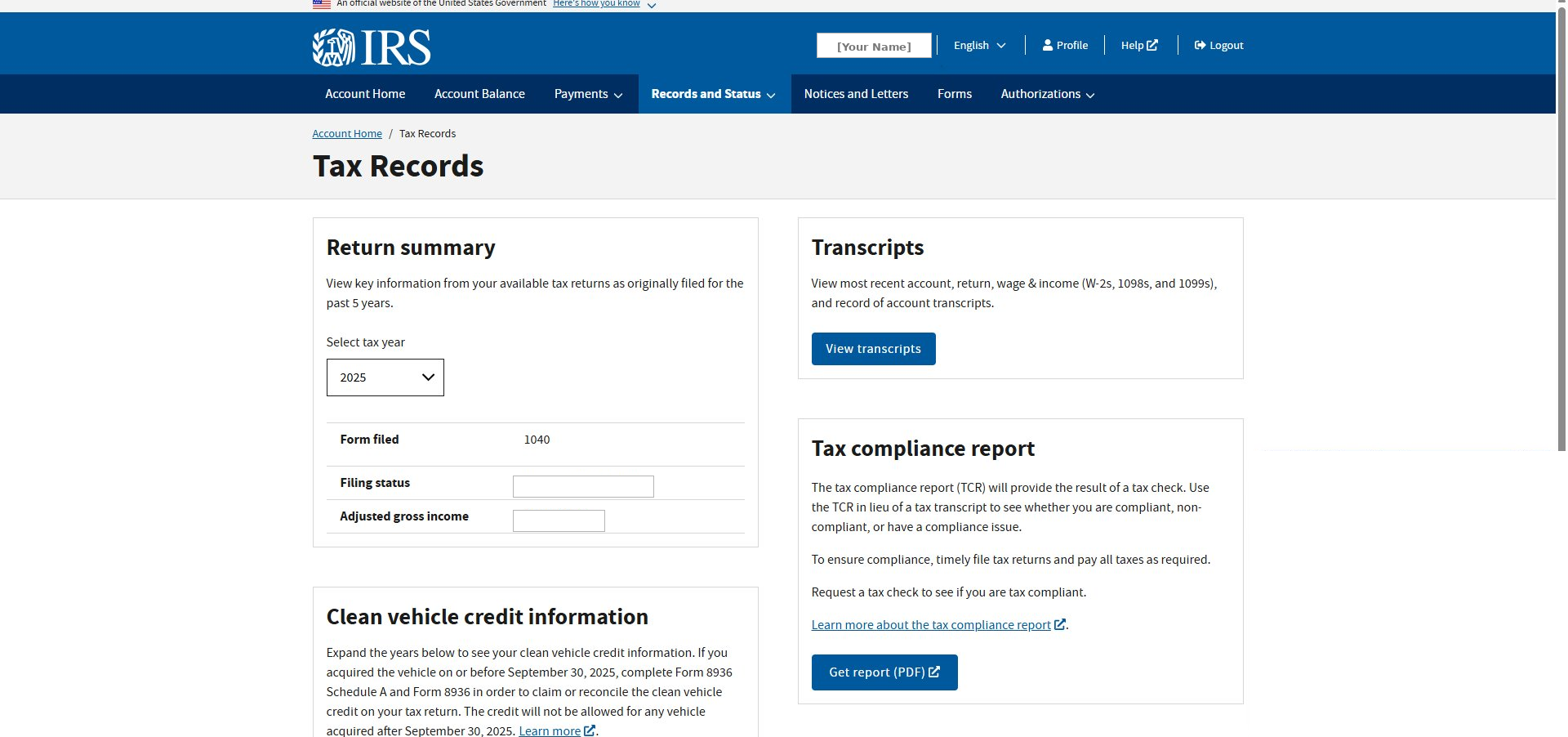
The Transcripts page shows four sections: Account Transcripts, Return Transcripts, Wage and Income Transcripts, and Record of Account Transcripts. You only need the Account Transcripts section, which is in the upper left.
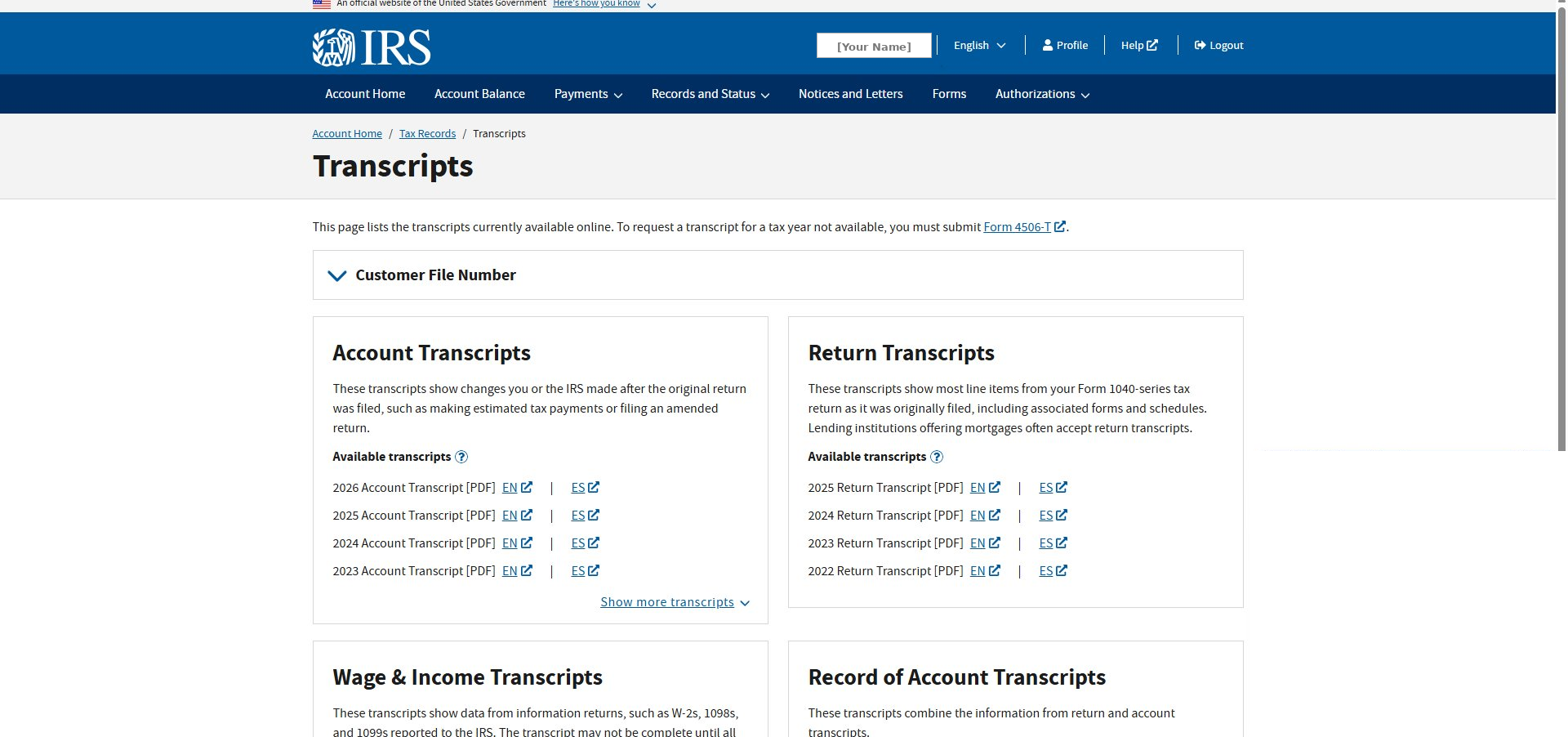
By default the Account Transcripts panel shows only the four most recent years. If you do not see 2019, 2020, 2021, and 2022 listed, click Show more transcripts at the bottom of the panel.
Once the full list is expanded, you will see Account Transcripts going back several years. Find the rows for tax years 2019, 2020, 2021, and 2022. Click the EN link next to each one to download the English version as a PDF.
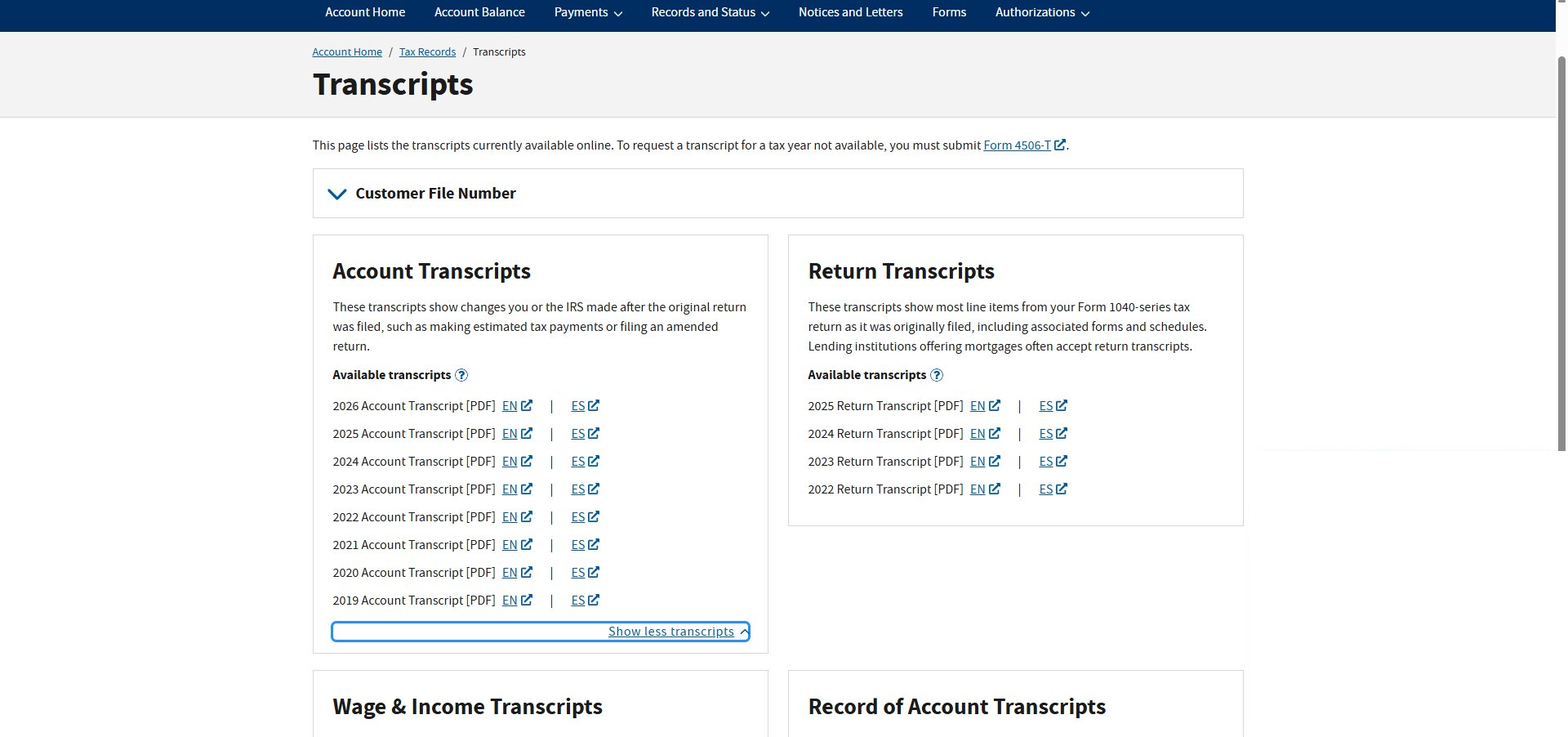
You should now have four PDF files
- 2019 Account Transcript
- 2020 Account Transcript
- 2021 Account Transcript
- 2022 Account Transcript
Ready to submit?
Once you have all four PDFs saved, head back to our portal and upload them for your free review. The system will analyze your transcripts in 15 to 30 seconds and tell you exactly what may be recoverable.
Go to the Submission PortalRequest transcripts by mail
5 to 10 daysIf you cannot complete ID.me verification, you can request transcripts by mail without identity verification. Use the Get Transcript by Mail tool on irs.gov. The IRS will mail the transcripts to the address on file from your most recent return. You will need to make a separate request for each year.
Request transcripts by phone
5 to 10 daysCall the IRS automated transcript line at 800-908-9946. Follow the voice prompts. Transcripts are mailed to the address on file. This is the easiest option if you are not comfortable navigating the website.